Skip to content
EN

Care and safety

NOQ SOS

A small pendant with one button for an older relative at home. A press wakes it, it joins the home Wi-Fi and sends a Telegram message to the people you picked: family, a neighbour, a family group. It talks to Telegram directly with your own bot; no NOQ server, no app, no account with us.

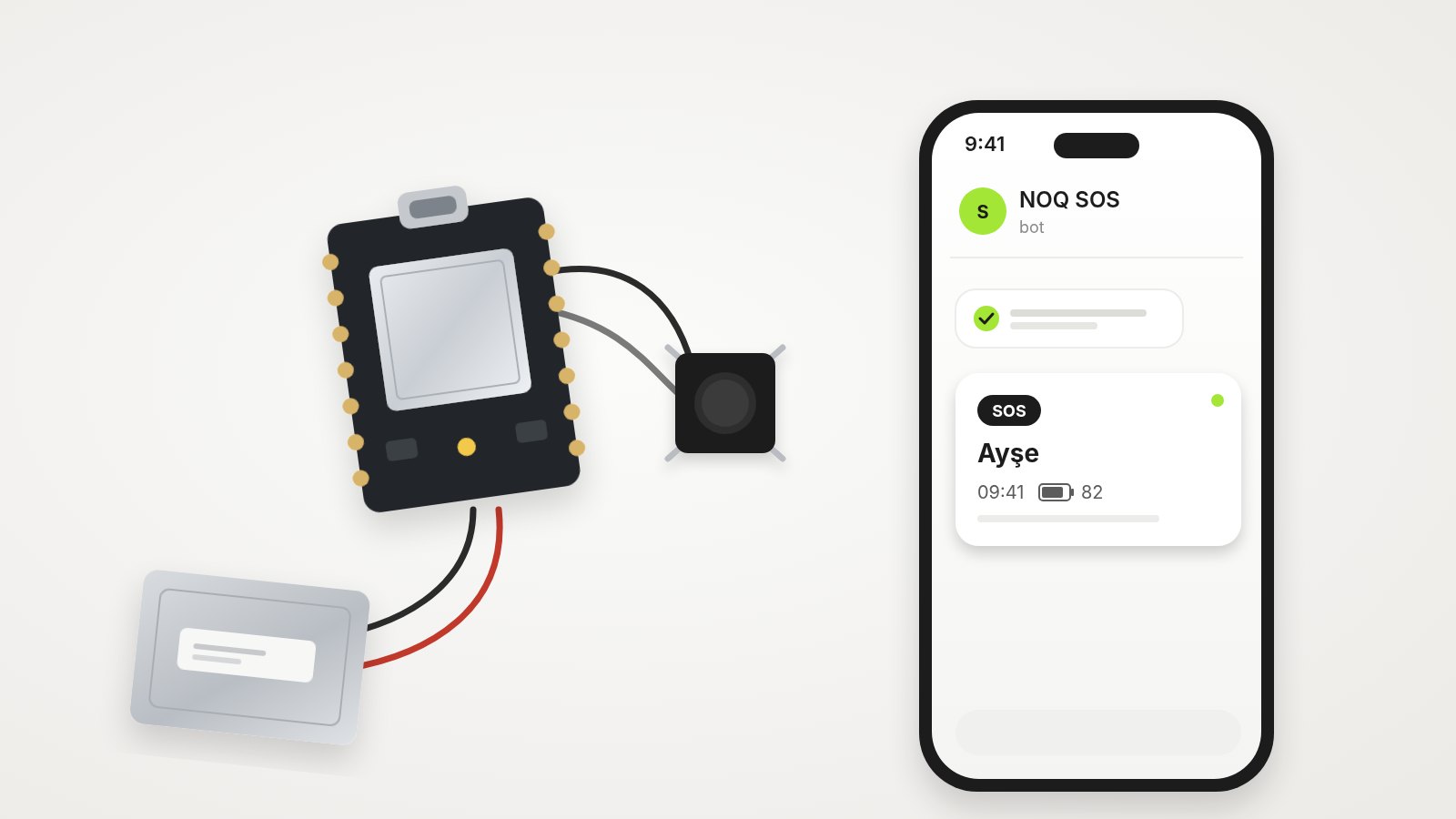
Illustration: the XIAO ESP32S3 board wired to a push button and a LiPo cell; next to it a phone showing the SOS message from the pendant's bot
Difficulty
Easy: four solder joints
Time
Soldering half an hour, setup 10 minutes
Licence
Firmware MIT · wiring and docs CC BY 4.0

Test build 0.1.0

Works on the bench, two things to go

  • Tested

    Setup network and Wi-Fi, connecting the bot, people joining with Start, test message, the alert from a button press, update over Wi-Fi.

  • Battery reading not tested yet

    The divider on D0 is in the wiring and the firmware reads it, but we have not measured it on the bench. Until then the battery percentage in the messages and the low battery warning are not verified; the page shows “no battery reading” without the divider.

  • No case yet

    We have not designed the pendant case yet; the print files come in 0.2.0. Until then, cover the board in heat-shrink or put it in a small box with the button reachable.

How it works

One press, a message to everyone

  • Press

    The pendant sleeps until the button is pressed. A press wakes it, it joins the home Wi-Fi and sends the alert with the time of the press.

  • It tells you it got through

    The LED (and the buzzer, if fitted) beeps once on the press, three short beeps when the message is delivered, one long beep when it is not. An undelivered alert is kept and retried.

  • Straight to Telegram

    The pendant talks to Telegram itself with a bot you create in two minutes. The bot token stays on the pendant; nothing passes through NOQ.

  • Up to six chats

    People join by tapping a link and pressing Start; a family group works too. Remove anyone from the pendant's page.

  • Daily check-in

    If you like, a silent “the pendant is working” message once a day at an hour you pick. If it does not come, the cell is flat or the pendant is out of Wi-Fi range.

  • Its own page

    Name, bot, people, message language and check-in hour live on the pendant's page at noq-sos-xxxxxx.local. Updates come over Wi-Fi while it is awake.

What you need

Tools, time and parts

Tools

  • Soldering iron and solder
  • Side cutter, wire stripper
  • Computer with USB-C and Chrome or Edge
  • Phone with Telegram

Time

Soldering: half an hour. Firmware, bot and people: 10 minutes.

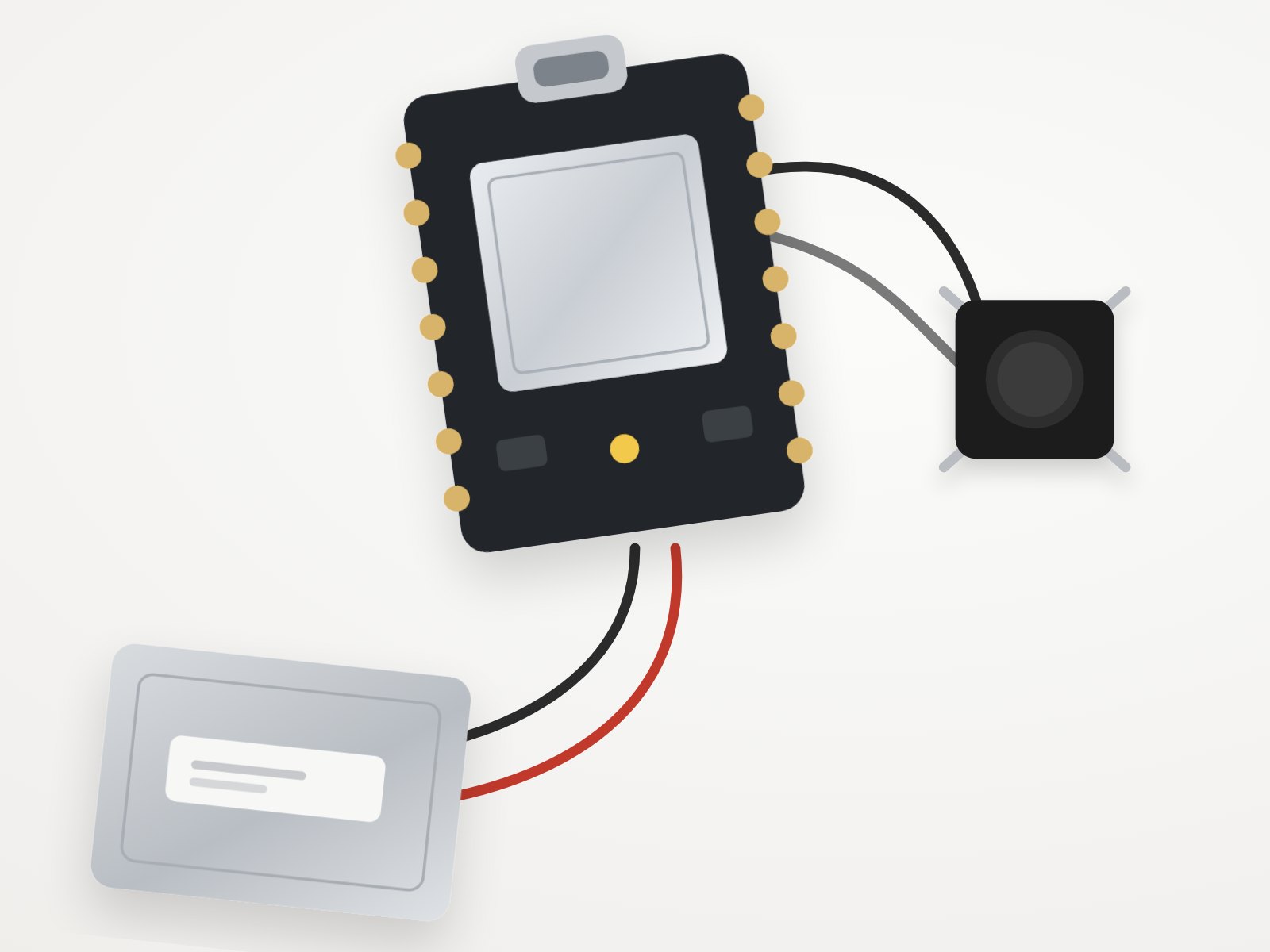
Illustration: XIAO ESP32S3 with a push button on D1 and a LiPo cell on the BAT pads

Parts list

PartQtyNote
Seeed Studio XIAO ESP32S31Charges the cell over USB-C. BAT+ and BAT− are pads on the back.
6 × 6 mm push button (4 legs)1Two diagonal legs: one to D1, one to GND. No resistor.
1-cell LiPo, 3.7 or 3.85 V1A small cell with wires (about 200 to 500 mAh). Red to BAT+, black to BAT−.
Buzzer or vibration motor1Optional. Buzzer on D3 and GND; a motor needs a transistor.
1 MΩ resistor × 2, 100 nF capacitor1 setOptional, for the battery reading on D0. Not tested yet.
Thin silicone wire (28 to 30 AWG)20 cmBlack, red and one more colour.

Build

Solder in four joints

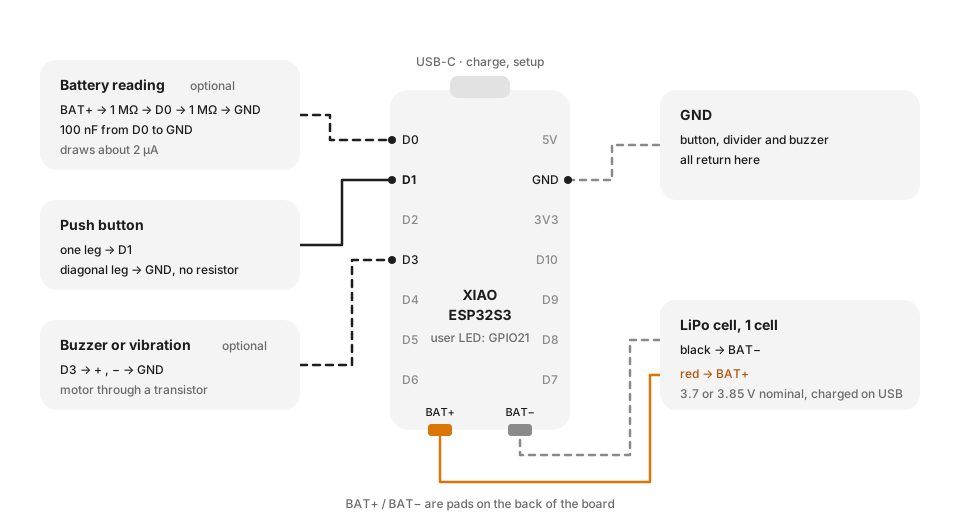
Wiring diagram: push button on D1 and GND, LiPo cell on the BAT+ and BAT− pads, optional battery divider on D0 and buzzer on D3
  1. 01

    Button

    Solder one leg of the button to D1 and the diagonally opposite leg to GND. The pin pulls itself up; no resistor.

  2. 02

    Cell

    On the back of the XIAO: red wire to BAT+, black wire to BAT−. Check the polarity twice; a reversed cell damages the board.

  3. 03

    Buzzer (optional)

    Buzzer + to D3, − to GND. A vibration motor needs a small transistor; do not drive it from the pin directly.

  4. 04

    Battery reading (optional)

    BAT+ → 1 MΩ → D0 → 1 MΩ → GND, and 100 nF from D0 to GND. It draws about 2 µA. We have not tested it on the bench yet.

  5. 05

    First test

    Plug in USB, flash and set it up. Press the button: one beep on the press, three short beeps when the message arrives.

  6. 06

    Cover it

    There is no case yet. Heat-shrink over the board or a small box with the button reachable does for now; keep the USB-C port free for charging.

Files

Download the files

Everything downloads from this page; no account needed. The browser setup wizard flashes the same firmware.

Source package (.zip)

Firmware

Electronics

Source and history

  • Repository

    GitHub · firmware, setup pages, docs

  • Issues

    Report a problem or suggest a change

  • Releases

    Version history and binaries

Setup

Flash, connect, add people

  1. 01

    Flash the firmware

    Plug the XIAO into your computer over USB-C and open the setup wizard. It flashes the firmware and joins Wi-Fi, then gives you the pendant's address.

  2. 02

    Or join Wi-Fi from the phone

    Already flashed? A network called noq-sos-xxxxxx appears on your phone. Join it, pick your home network and tap Open the pendant's page.

  3. 03

    Create the bot

    On the pendant's page tap Open BotFather and send /newbot. Copy BotFather's whole reply and paste it into the page; it picks the token out.

  4. 04

    Add the people

    Each person taps Open in Telegram and presses Start; they show up on the list within seconds and the bot says Connected. Then send a test message.

  5. 05

    Finish

    Tap Finish: the pendant goes to sleep and wakes on the button. While it is on USB it stays awake.

Open the setup wizard

Makers

I made one

Photos and notes from people who built one. Add yours: a photo, a short note, the version, materials and print settings.

Sign in to take part

Use your NOQ account: a code by WhatsApp or email, no password. The same account works on noq.works and the NOQ app.

Questions

Ask where you got stuck

Write your question; Luma answers right away from the project documents and cites its sources. If the documents don't cover it, Luma passes it to the team; it is marked once the team verifies it.

Sign in to take part

Use your NOQ account: a code by WhatsApp or email, no password. The same account works on noq.works and the NOQ app.

Suggestions

What should the next version have?

Suggest an idea or vote for one you like. Planned suggestions go into the release notes with your name.

Sign in to take part

Use your NOQ account: a code by WhatsApp or email, no password. The same account works on noq.works and the NOQ app.

Versions

What changed, what's next

Versions are MAJOR.MINOR.PATCH: a patch fixes, a minor release adds compatible features, a major release needs new parts or wiring.

5 November 2026 · current

NOQ SOS 0.1.0

First test build: one press sends a Telegram alert straight from the pendant.

Firmware

  • Deep sleep on a XIAO ESP32S3; a press wakes it, joins the home Wi-Fi and alerts every chat on the list.
  • An alert that cannot go out is kept and retried after 1, 2, 5 and then every 10 minutes; the message says how late it is.
  • Optional daily silent check-in and a low battery message; updates over Wi-Fi while the pendant is awake.

Setup

  • Wi-Fi from the browser installer or the NOQ Open setup network, which then opens the pendant's own page.
  • On that page: open BotFather with /newbot ready, paste its whole message (the token is picked out), then tap Start in the bot to join the list.
Compatibility
Test build. Battery reading is not tested yet and there is no case yet; build it on the bench first.

All release notes

Version and licence

Use it, change it, share it

Version
0.1.0 · 5 November 2026 · First test build: one press sends a Telegram alert straight from the pendant.
Firmware
MIT licence
Wiring and docs
CC BY 4.0
Attribution
NOQ SOS, NOQ Open · open.noq.works/projects/sos

Built one, measured the battery or designed a case? Share it below or open an issue on GitHub; we will fold it into the next release.